A few things:
First, you need to have the files on your system. Look for the "Excel2010AddIn" folder inside your EViews program directory. There should be some files in there named "EViews_Excel2010_40_AddIn.dll" and the like.
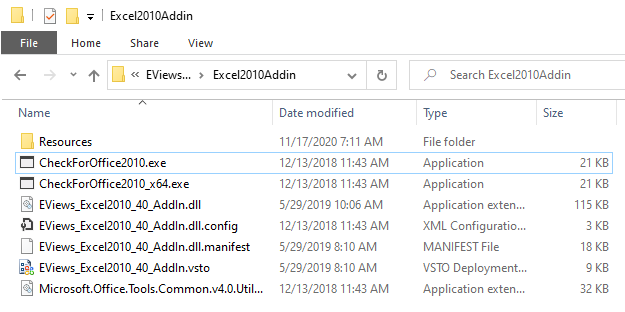
- excel_add_ins_files.png (26.98 KiB) Viewed 81988 times
If you don't have files in this folder, then you didn't select the Excel Add In during EViews installation. Re-install and select the add in to get the files.
Second, our installer installs a Microsoft Visual Studio 2010 Tools for Office Runtime which is needed by our add-in to work properly on a machine. You can see the list of pre-requisites for the Excel 2010 add-in on this
page and also download them separately and install them manually.
Finally, you'll want to make sure the add-in is properly registered by EViews to work with Excel. You do that via the REGCOM command you already tried and clicking the "Yes(All)" button to re-register everything. As a suggestion, make sure Excel isn't running when you do this.
Afterwards, run Excel and if you don't see the Add Ins ribbon menu, then go to Excel File menu/Options then select "Add-ins" in the left list box.
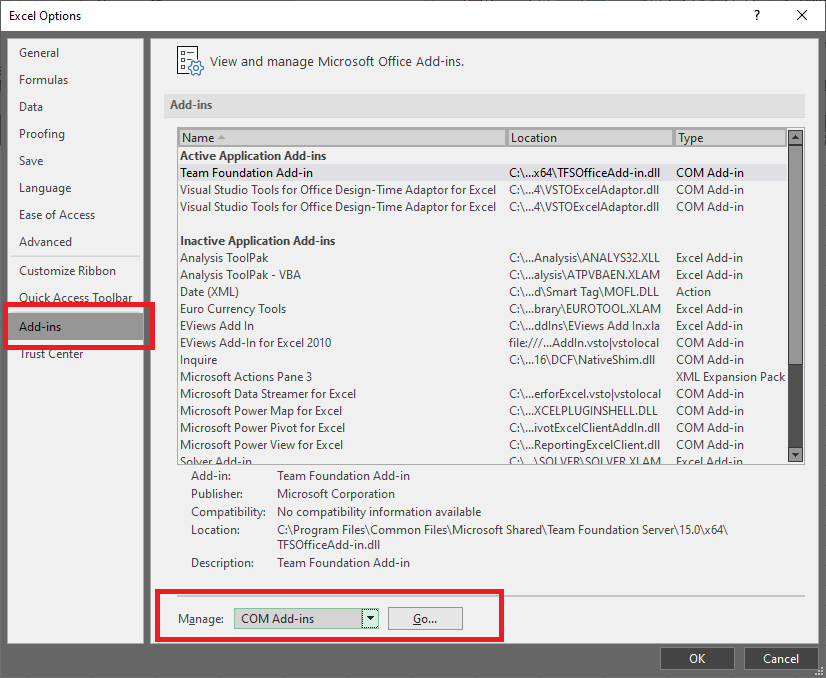
- excel_add_ins_options.png (42.93 KiB) Viewed 81988 times
Select "COM Add-ins" in the Manage dropdown, then click Go. You should see the following dialog:
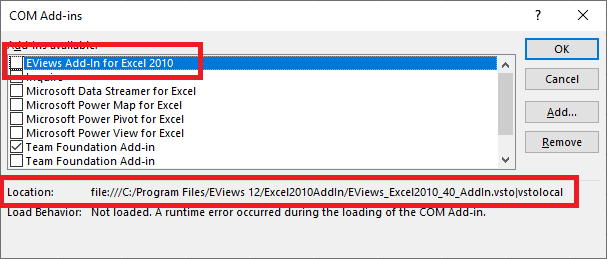
- excel_add_ins_options_2.png (15.58 KiB) Viewed 81988 times
Make sure the checkbox next to "EViews Add-In for Excel 2010" is checked. Also, look at the Location label at the bottom to verify that it's pointing to a location that is valid on your machine. If this label is invalid, you'll have to run REGCOM again. Let me know if you have trouble with this.
Steve