Page 1 of 1

Jupyter

Posted: Mon Feb 20, 2023 9:22 am
by amrsherif
Hello,

I'd like to know if it is possible to use add-ins and external databases (like datastream, SQL, etc) on Jupyter notebook in EViews 13?

I have had no luck so far; can run basic commands and fetch from local databases (if i include the full path) but it seems to not be using my database registry (nor any add-ins).

Re: Jupyter

Posted: Mon Feb 20, 2023 6:02 pm
by EViews Steve
Jupyter depends on the EViews DLL which has it's own location for relevant INI files (different from the EViews EXE). If you'd like to use the same EViews databases entries in Jupyter, you can simply copy the evDB.ini file from:

Code: Select all

C:\Users\<username>\AppData\Roaming\IHS EViews\EViews
and paste it into the following folder:

Code: Select all

C:\Users\<username>\AppData\Roaming\IHS EViews\EViewsDLL
Then restart the EViews 13 kernel in your notebook. At this point your saved database entries should now be available.

Do something similar with the ProgReg.ini file if you'd like the use the same add-ins under the EViews DLL environment.

Steve

Re: Jupyter

Posted: Tue Feb 21, 2023 11:45 am
by amrsherif
Thank you for the info.

Two issues came up. The first is that one of my addins has xopen(p), and I am getting an error saying xopen is not a defined command. Is there a way around this?

Another issue that our SQL database is not being recognized. The exact error is: "unrecognized format GSQLEDX in DBOPEN(TYPE=GSQLEDX) in GET.prg",
get being the add-in program.

Re: Jupyter

Posted: Tue Feb 21, 2023 3:04 pm
by EViews Steve
We found that the EViews DLL becomes unstable under Jupyter whenever we tried to use one of the external program interfaces (via XOPEN), so we've disabled it for now. It's possible it'll be made available at some point, but no promises.

Regarding your "unrecognized format GSQLEDX" error -- did you copy over the ProgReg.ini file similar to the evDB.ini (as I mentioned in my previous post)? Any registered EDXs in EViews will be defined in that INI and so if you copy it from "EViews" to "EViewsDLL", then it should be available under Jupyter.

Steve

Re: Jupyter

Posted: Wed Feb 22, 2023 10:44 am
by amrsherif
Hello,

Yes i did copy botht hose files over. I can see SQL in evDB, while ProgReg seems to only contain the addin information.

Anyway, still getting the same error

Re: Jupyter

Posted: Wed Feb 22, 2023 5:01 pm
by EViews Steve
Try running the EDXADD command (under Jupyter) for your add-in and specify the full path to the AIPZ file to see if that resolves your issue.

Re: Jupyter

Posted: Thu Feb 23, 2023 4:49 pm
by amrsherif
Thanks. How do i run the EDXADD command in Jupyter? I ran it in as a regular commmand in the notebook in the browser and received "ok" as an answer. However, nothing has changed. And also i am not sure how/where to specify the full path to the AIPZ file (i also do not know which AIPZ file you are referring to).

Re: Jupyter

Posted: Fri Feb 24, 2023 8:56 am
by EViews Steve
Ok, I was trying to avoid suggesting this before (due to possible issues in Jupyter), but the simplest solution to your program is to copy the "EViews32.ini" file from

Code: Select all

C:\Users\<username>\AppData\Roaming\IHS EViews\EViews
to

Code: Select all

C:\Users\<username>\AppData\Roaming\IHS EViews\EViewsDLL
again.

Once copied, restart your kernel and you should be able to run the same commands as you could in regular EViews (except for the XOPEN command).

Steve

For a more detailed explanation (and a more surgical answer), read the following:

Add-Ins / AIPZ Explanation
Add-ins are "registered" with EViews by dragging and dropping the add-in's AIPZ file onto the EViews window. EViews will see that it's an add-in file, unzip it, and then run the install.prg that is usually inside the zip file. This install program runs the EDXADD command along with the associated ProgID of the add-in's Database Manager class.

So if you have the add-in's AIPZ file, and you'd like to use it in your Jupyter environment, then run the following command in Jupyter:

Code: Select all

RUN <path_to_aipz_file>
Once installation is complete, you should be able to use that add-in's objects (such as GSQLEDX) in your commands. Here's an example of what that RUN command looks like using the aim_solve add-in I manually downloaded from our downloads page.

2023-02-24_07h32_06.png
2023-02-24_07h32_06.png (3.81 KiB) Viewed 10599 times
No AIPZ File
If you don't have the AIPZ file, and since your add-in has already been installed onto your system, then you could potentially just register the ProgID of the database manager by running the following:

Code: Select all

EDXADD <ProgId_Of_DbMgr>
but you'll need to know the ProgId of your GSQLEDX Database manager class. Here's an example of what that looks like for our CustomDBMgr class that we provided in our EDX samples code.
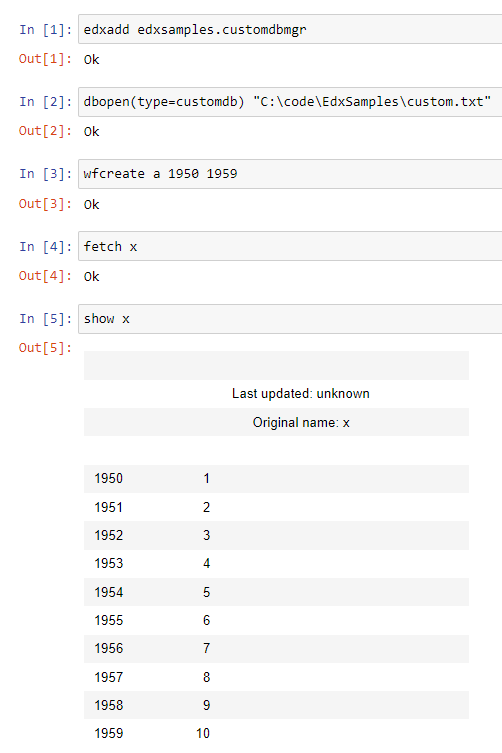
2023-02-24_07h33_35.png
2023-02-24_07h33_35.png (17.09 KiB) Viewed 10599 times
You can see that after I called EDXADD with the "edxsamples.customdbmgr" class from the code sample, I was able to use it in the following DBOPEN command and then fetch a series from it.

Look in EViews32.ini
One thing that could help you find the details for your GSQLEDX add-in is to look in your EViews32.ini file located here:

Code: Select all

C:\Users\<username>\AppData\Roaming\IHS EViews\EViews\EViews32.ini
Open it using Notepad and then scroll all the way to the bottom to find the section that starts "[Database Extensions]". Under here you should see a bunch of "COMX=" lines, one for each registered EDX on your system. Scan thru that list to see if you can find the one that contains "name=GSQLEDX". When found, the value right after the first "=" sign is the ProgID of each database manager. Here it is on my system (in red):

2023-02-24_07h41_57.png
2023-02-24_07h41_57.png (6.1 KiB) Viewed 10599 times
If you find the value, try to call EDXADD with that value in Jupyter to see if that resolves your DBOPEN error.

Re: Jupyter

Posted: Fri Feb 24, 2023 10:15 am
by amrsherif
Thank you for the detailed response. I followed the more surgical response and succeeded without having to copy "EViews32.ini"