Reading multi-sheet Excel files into multi-page EViews files
Posted: Fri Jan 08, 2010 2:35 pm
One of the programming features added in EViews 7 was the ability to retrieve the names of the sheets in an Excel file. This function can be used as part of an EViews program that brings in each sheet of an Excel file into a separate page in an EViews file.
As an example we'll use the Excel file shown below. Notice it has multiple sheets, containing data on a number of different countries:

Note the Excel file can be downloaded from here.
The following EViews program can be used to bring this in to an EViews workfile. Note the first line of the program contains the path to the Excel file, which you'll have to change to fit where-ever your own Excel file is located.
Note that this code assumes that the sheet names in the Excel file are valid EViews page names. One obvious exception to this would be if your Excel sheet names have spaces in their names - EViews pages cannot have spaces.
After running that program, you should end up with an EViews file that looks like this:
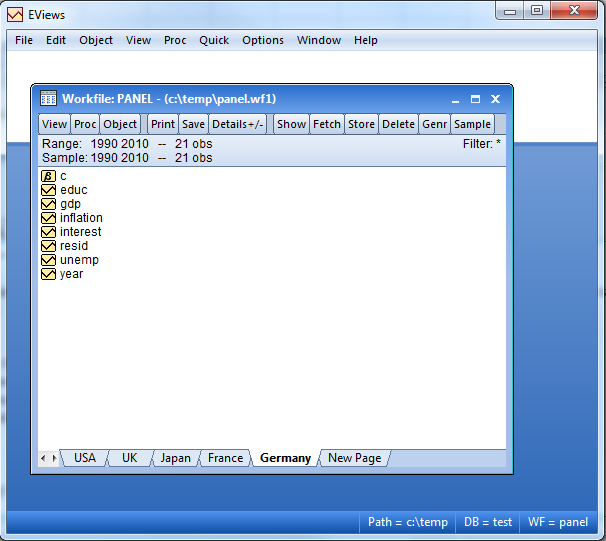
And you're done!
As an example we'll use the Excel file shown below. Notice it has multiple sheets, containing data on a number of different countries:
Note the Excel file can be downloaded from here.
The following EViews program can be used to bring this in to an EViews workfile. Note the first line of the program contains the path to the Excel file, which you'll have to change to fit where-ever your own Excel file is located.
Code: Select all
%filename = "c:\temp\sheetpanel.xlsx"   'file name of the file to be opened

%sheetnames = @tablenames(%filename)   'find the names of the sheets in that file

%sheetname = @word(%sheetnames,1)   'get the first sheet name

wfopen(wf=panel,page=%sheetname) %filename range=%sheetname    'open the first sheet as a new workfile (with name=panel, and pagename=the first sheet name)


'loop through the remaining sheets, loading them into the workfile one at a time
for !i=2 to @wcount(%sheetnames)
	%sheetname = @word(%sheetnames,!i)  'get the name of the next sheet
	pageload(page=%sheetname) %filename range=%sheetname       'load the next sheet
next
After running that program, you should end up with an EViews file that looks like this:
And you're done!